Free Chrome extension · Reading and knowledge management
Everything you read, kept and understood.
Most readers stop at reading. JK RapidReader keeps going: your feeds, saved articles, PDFs and books go into one library, you get through them fast, one word at a time, then summarise them, quiz yourself and ask AI about them. All of it stays with the article, in a folder of plain files you own.
Chrome, Edge, Brave and Arc · No account · Nothing is sent to us
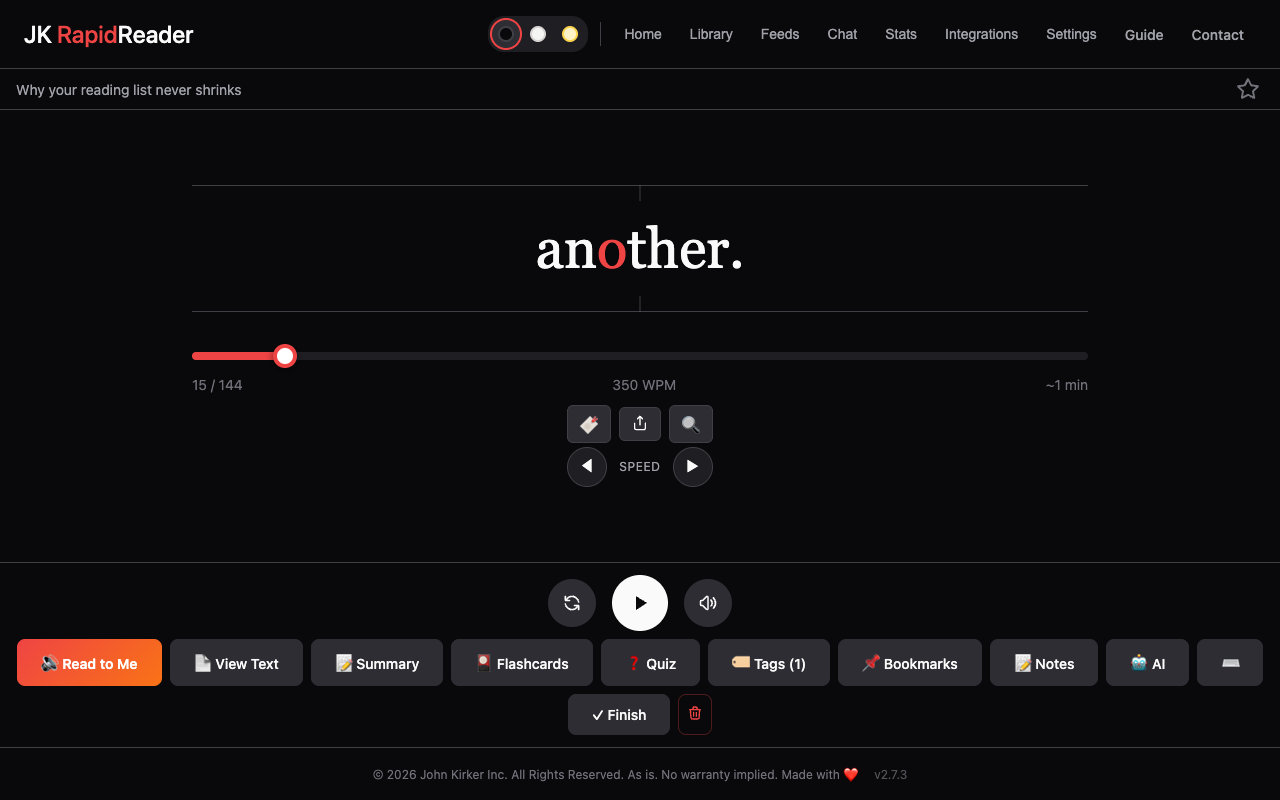
This is how RapidReader reads. One word at a time, in one place, so your eyes stay still. The red letter gives your eye somewhere to land. It slows a little at commas, and a little more at the end of a sentence. Pick a speed below, or save anything you meant to read and try it on that.
The reader, running on this page. Try a speed.
01 — Collect
Everything you mean to read, in one place.
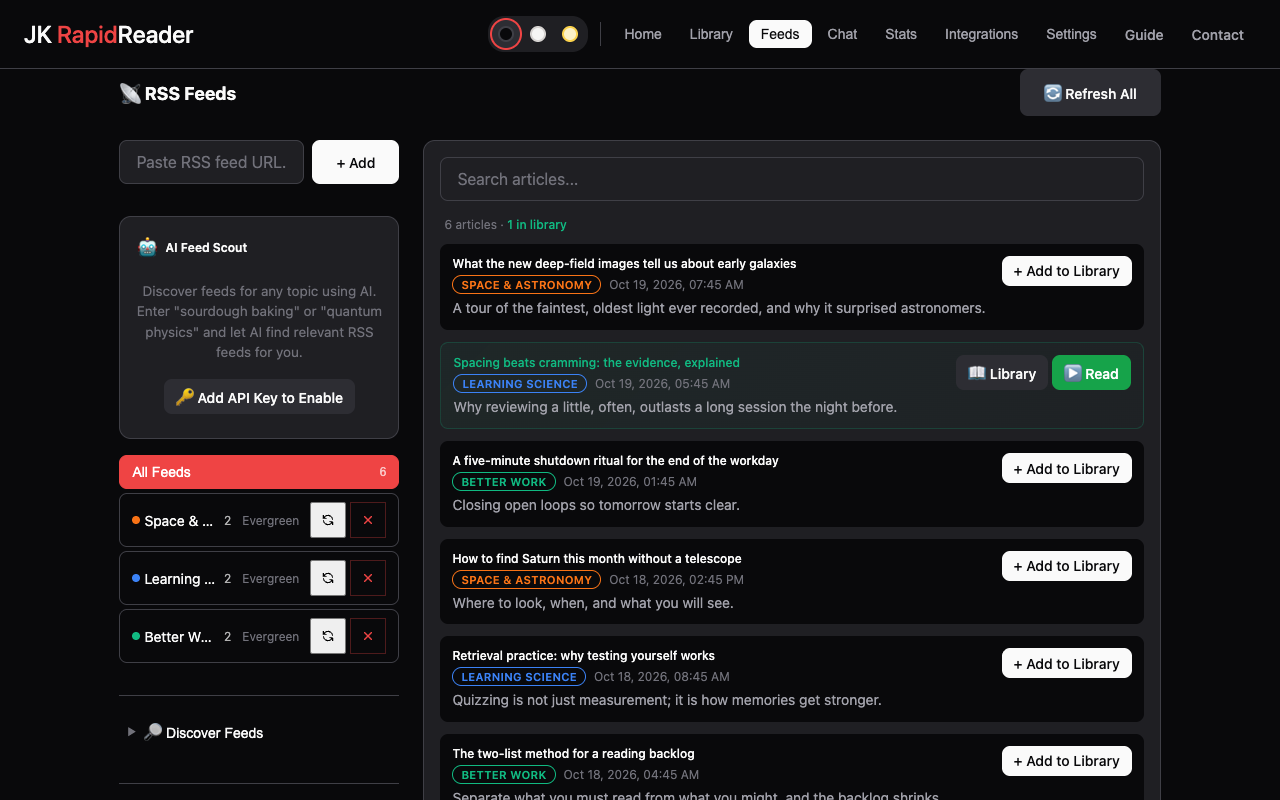
Follow sites by RSS, right-click a page, a link or a selection, or drop in a PDF or a book. Feeds, read-later and documents end up in the same library, not three different apps.
- RSS feeds, a feed directory, and Feed Scout to find more
- Right-click a selection, a link or the page
- PDF, EPUB, DOCX, RTF, Markdown, text and HTML
- Full article text saved, not just a link
02 — Read
Get through it, one word at a time.
Speed reading is how the pile gets smaller. Your eyes stop jumping along lines and the page around the text disappears. You set the pace, and slow down whenever something matters.
- A red focus letter in each centred word, to give your eye a place to land
- Natural pauses at commas and full stops
- Read to Me when you would rather listen
- Chapters, search and View Text for the whole page at once
03 — Understand
Ask a whole book, not just a page.
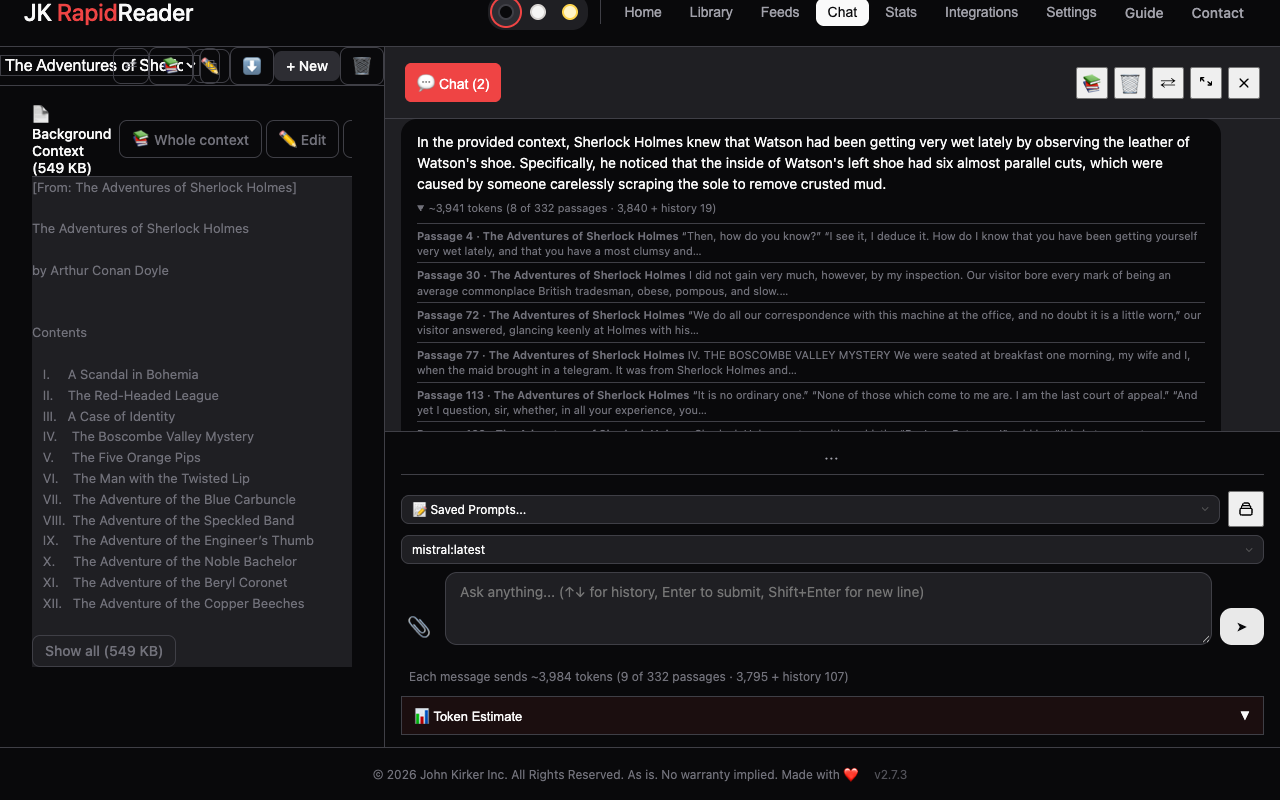
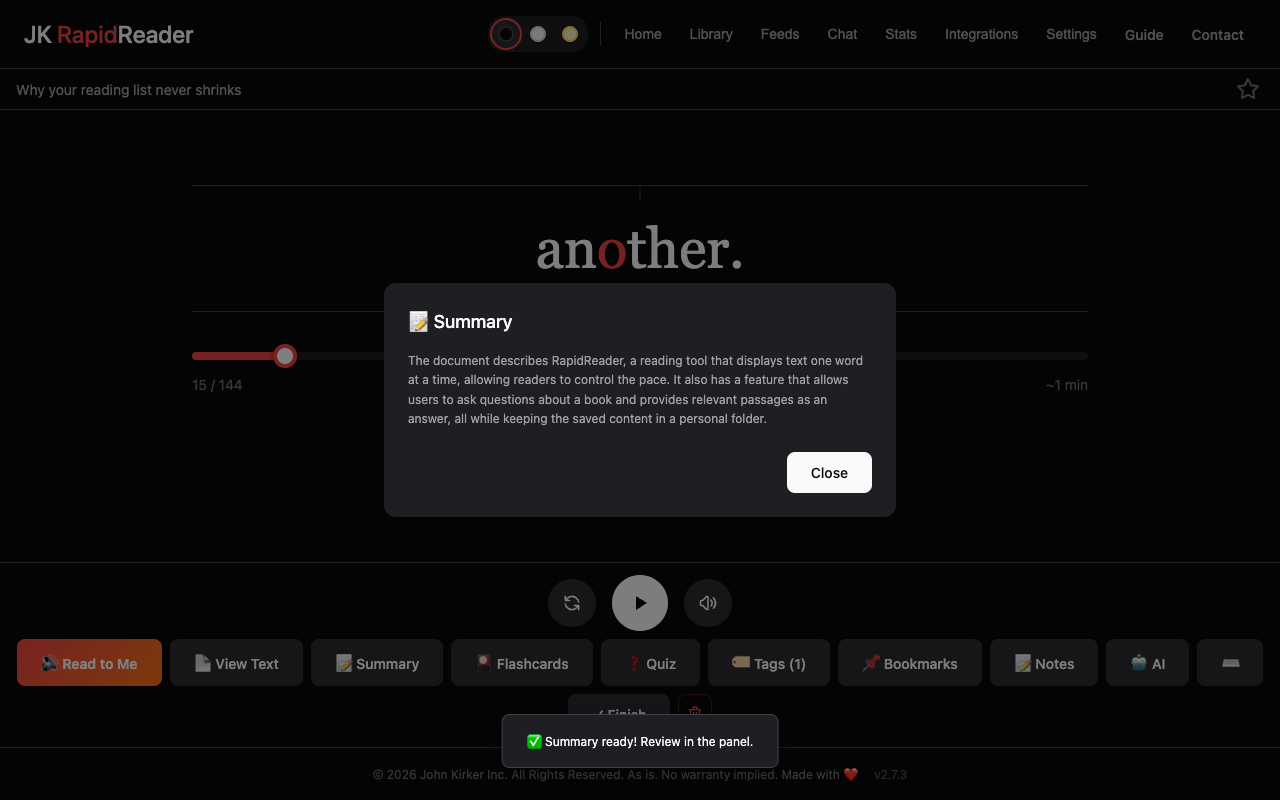
Summarise an article, pull out its key points, or chat with a book, a report or a stack of articles from your library. For long documents RapidReader sends only the passages that answer your question, and shows you which.
- Summaries and key takeaways, saved with the article
- Chat with one article or several from your library
- Claude, ChatGPT, Gemini or Grok with your own key, or Ollama, free on your computer
- The cost of each message shown before you send it
04 — Remember
Check what stuck, and find your place again.
Reading something once is easy to forget. Quiz yourself on it, review its key ideas as flashcards, and leave notes at the exact spot in the text they are about.
- Quizzes, scored, each answer linked to its place in the text
- Flashcards to review the key ideas
- Notes and bookmarks tied to their place in the text
- Reading stats: streak, weekly goal, speed over time
05 — Keep
A library that grows with what you learn.
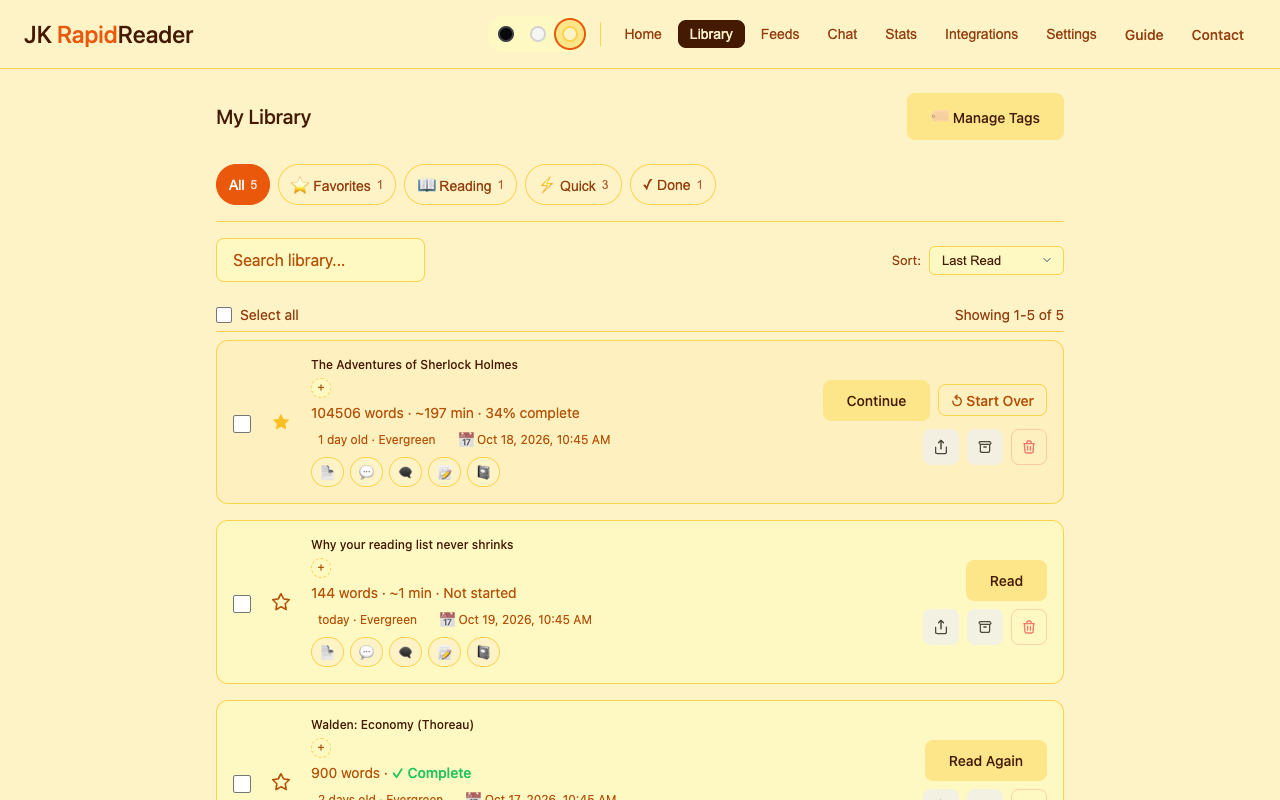
Every article keeps its summary, notes, quiz, flashcards and chats beside it, so what you learned from it stays with it. Search the full text, tag it, and let news age out while reference material stays.
- Search titles and full text, tags, favourites and archive
- News, Evergreen and Reference, so old news sinks
- Plain Markdown files in a folder you choose
- Works in an Obsidian vault: edits go both ways
A minute long
See it working.
Saving an article, reading it, listening to it, and asking about a book, in sixty seconds.
And the rest
Small things that add up.
01
Listen
Read to Me reads aloud and highlights each word. Free voices on your computer, or natural AI voices with your own OpenAI key.
02
Summaries on arrival
Optionally, every new import and feed item gets a summary as it comes in, so the library tells you what each piece says.
03
Chats become articles
Save an AI chat to your library as an article of its own, or export it as Markdown.
04
Clean up messy text
One click removes menus, ads and leftovers. AI cleanup tidies a badly formatted document.
05
Chapters and search
Books get a table of contents and next and previous chapter. Search jumps to any word.
06
Comfortable to read
Dark, light or sepia, dyslexia-friendly fonts and a Dyslexia-Friendly Mode, Peripheral Preview and Chunk Mode.
07
Stats
Your streak, words this week against a goal you set, your speed over time and when in the day you read.
08
Readwise
Send an article and your notes on it to Readwise.
09
Keyboard first
Space, arrows, R, S, T and B. Press ? for the full list. Works with screen readers.
Straight answer
What speed reading can and can’t do.
Reading one word at a time removes the eye movements between words, so you can go faster. It does not make understanding free: at high speeds you keep less detail, and you can’t glance back at a sentence you missed.
So use speed where it helps: getting through the articles you saved and never opened, a first pass over a report, the news. Slow down for what matters, open View Text to see the whole page, and take a quiz to check what stuck.
Your data
Your knowledge is a folder of files.
Every article is a plain Markdown file in a folder you choose, with its summary, notes, quizzes and chats in files beside it. Nothing is locked in an app or a server: back it up or sync it like any folder, or keep it inside your Obsidian vault.
There is no account and no tracking. The extension sends nothing to us. AI requests go straight from your browser to the provider you chose, with your key, and Ollama keeps everything on your computer.
Get it
Free. No account, no subscription.
Install from the Chrome Web Store, or download the zip and load it yourself.
Learn to read faster
A free 5-day email course, one short lesson a day. After that, a short email when there is a new version worth knowing about.